a path you already installed
OBS on Linux: the mic noise filter you already have
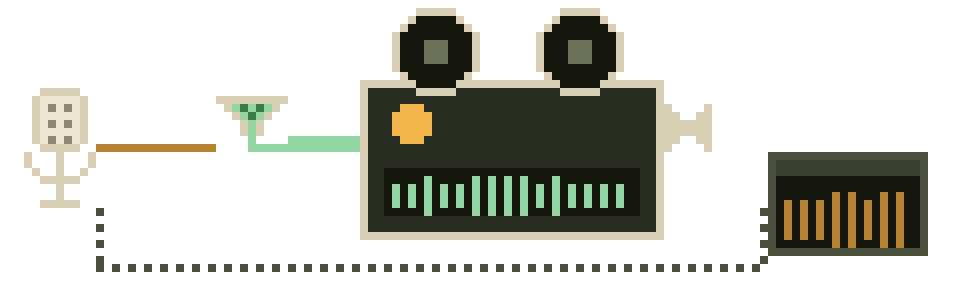
If OBS Studio is already on your Linux machine — capturing a desktop walkthrough, archiving a talk, recording a bug reproduction to attach to an issue — then you have a noise suppressor installed and probably don't know it. OBS ships one in the box, per audio source, and for a certain kind of user it makes the entire system-level stack unnecessary. This page is about knowing when that's true, and when it's a trap.
The scope question, first
OBS filters only what OBS hears. That is the single most important sentence on this page, and it cuts both ways.
It's a limitation if you expected clean audio in your calls — your meeting software does not go through OBS, so it receives your raw, noisy microphone exactly as before. It's a genuine feature if what you want is surgical: recordings come out clean while every other application keeps the untouched mic, with no system-wide processing running all day and nothing to break when you unplug the interface. Our scoring rubric marks this path down for scope on purpose, but "app-local" is the right answer more often than the score suggests.
- inside OBS
- OBS · Noise Suppression filterRNNoise, per audio source
- your recordingcomes out clean
- every other app
- meeting softwarenever passes through OBS
- the callraw, noisy mic, exactly as before
Adding the filter
- In the Audio Mixer panel, click the gear beside your microphone source and choose Filters.
- Under the effect filter list, click + and add Noise Suppression.
- Choose a method. OBS offers RNNoise and Speex; the project describes RNNoise as the higher-quality option at the cost of more CPU, with Speex lighter and adjustable via a suppression-level control.
- Close the dialog. That's it — the filter is live on that source and saved with your scene collection.
Pick RNNoise and stop thinking about it. It's the same model family as EasyEffects and everything else we cover, its CPU cost on any machine capable of screen capture is irrelevant, and it has no knobs to get wrong. Speex earns its place only on genuinely weak hardware, and its higher suppression settings are where the robotic, watery artifacts people complain about come from.
Filter order, which is not cosmetic
OBS applies filters top to bottom, and the ordering changes the result. A sane default chain for a Linux desktop recording:
| Order | Filter | Why here |
|---|---|---|
| 1 | Noise Suppression | Clean first, so nothing downstream amplifies the room. |
| 2 | Noise Gate (optional) | Gating after suppression means the gate judges a quiet signal, so it triggers predictably instead of chattering on room tone. |
| 3 | Compressor (optional) | Evens out your level. Placed last so it lifts your voice, not the noise floor you just removed. |
Start with row one alone. The most common self-inflicted wound in this niche is a four-filter chain copied from a tutorial, applied to a microphone that only ever needed the first one. Add a filter when you can name the specific problem it solves in your recording.
Linux-specific things that bite
- Flatpak and device access. The Flathub build of OBS is sandboxed. If your microphone doesn't appear in the source list at all, that's a portal/permission issue, not an audio-server one — check the app's device permissions before you start debugging PipeWire.
- PipeWire capture sources. Modern OBS on Linux can capture application and desktop audio through PipeWire directly. Handy, and also a way to accidentally record your own monitoring back into the file. If you hear yourself twice, this is why.
- Don't denoise a denoised mic. If EasyEffects or a filter-chain is already cleaning your microphone system-wide, and you then point OBS's filter at the same input, you are running RNNoise into RNNoise. The result is the underwater sound everyone blames on the model. Pick one layer — the reasoning is on our RNNoise page.
- Wayland versus X11 doesn't matter here. It matters plenty for window capture; for audio it's irrelevant, since none of this touches the display stack.
Should this be your only suppression?
Yes, if OBS is genuinely where your microphone matters — you record, you don't take many calls, and you like that the rest of your system stays stock. It's the lowest-commitment setup on this site: nothing autostarts, nothing sits in your session, and removing it is deleting a filter.
No, if you spend your day in calls. Then fix the microphone at the system level with EasyEffects and simply don't add a filter in OBS — it'll record the already-clean input. And if the recording is already made and already noisy, nothing here helps; that's an ffmpeg or SoX job on the file.