config-file route
The PipeWire filter-chain: a denoised mic in one config file
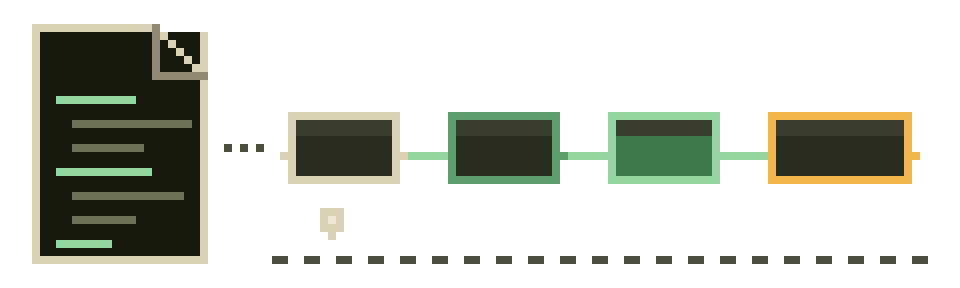
There is a category of Linux user who reads "install this GTK app and click four times" and feels a small itch. No user-session application, no tray presence, no GUI state to lose — just a file you can drop in your dotfiles, commit, and restore on a fresh install. PipeWire's filter-chain module is built for exactly that person. Give it a config and it constructs an audio processing graph at startup, publishing the result as a virtual microphone that every application on your system treats as an ordinary input device.
The one dependency, and its honest status
The denoising itself comes from werman's noise-suppression-for-voice — a LADSPA/LV2 plugin wrapping RNNoise, GPL-3.0, the same model family as everything else on this site.
Packaging is where this path loses points in our scoring. We verified it in Arch's extra repository as noise-suppression-for-voice; elsewhere you're typically downloading the release archive or building it. That's a real cost, and it's why we send most people to EasyEffects, which is in everything.
Install the plugin
~$ # Arch family — in the official repos
~$ sudo pacman -S noise-suppression-for-voice

~$ # Elsewhere: grab the release archive from the project,
~$ # then put the .so where LADSPA hosts look for it:
~$ mkdir -p ~/.ladspa
~$ cp librnnoise_ladspa.so ~/.ladspa/
The file name matters, because the config below refers to the plugin by path. If your distro installs it somewhere else — /usr/lib/ladspa/ is the other common home — note the location now and adjust one line later.
The config, annotated
Create ~/.config/pipewire/pipewire.conf.d/99-denoise.conf. The drop-in directory is the important detail: you are adding a fragment, never editing PipeWire's shipped configuration, so a package update can't clobber you and a rename can't break your audio permanently.
context.modules = [
{ name = libpipewire-module-filter-chain
  args = {
    node.description = "Denoised Microphone"
    media.name       = "Denoised Microphone"
    filter.graph = {
      nodes = [
        { type   = ladspa
          name   = rnnoise
          plugin = ~/.ladspa/librnnoise_ladspa
          label  = noise_suppressor_mono
          control = {
            "VAD Threshold (%)"     = 50.0
            "VAD Grace Period (ms)" = 200
          }
        }
      ]
    }
    capture.props = {
      node.name    = "capture.rnnoise_source"
      node.passive = true
      audio.rate   = 48000
    }
    playback.props = {
      node.name   = "rnnoise_source"
      media.class = Audio/Source
      audio.rate  = 48000
    }
  }
}
]
Four lines do the real work. plugin is the path to that .so minus its extension — fix it if yours lives elsewhere. label selects which plugin inside the library to load; noise_suppressor_mono is the one you want for a microphone, with a stereo variant available for the rare stereo input. media.class = Audio/Source is what makes the result appear as a microphone rather than a sink. And audio.rate = 48000 is not decoration: RNNoise operates at 48 kHz, and letting the graph resample around it wastes cycles and occasionally sounds wrong.
- physical micwhatever your default input is
capture.rnnoise_sourcecapture side · node.passive = true · 48000 Hzrnnoise(ladspa)noise_suppressor_mono · VAD 50.0% · grace 200 msrnnoise_sourceAudio/Source · 48000 Hz- “Denoised Microphone”listed as an ordinary input in every app
The VAD threshold is the same knob every wrapper exposes. At 50 the filter is confident about muting frames it believes contain no voice; push it toward 90 and quiet speech starts vanishing mid-word; drop it toward 10 and more room tone survives. Change it in steps of ten, not ones.
Load it and point things at it
~$ systemctl --user restart pipewire pipewire-pulse
~$ # confirm the virtual source exists:
~$ pw-cli ls Node | grep -i rnnoise
~$ # or the friendlier view:
~$ wpctl status
"Denoised Microphone" should now be listed among your sources. Select it as the input in your applications, or set it as the system default so everything picks it up automatically. If you want a graphical picture of the graph — useful the first time, genuinely diagnostic later — qpwgraph or Helvum will show you the boxes and the wires between them.
When it doesn't work
- No new source appears. Nine times out of ten the plugin path is wrong. Confirm the
.soexists where the config claims, and remember the config omits the.soextension. - The source exists but is silent. Check which physical microphone the capture side latched onto — by default it follows your default input, which may not be the mic you meant. Patch it explicitly in
qpwgraphto confirm before editing anything. - Everything breaks after a PipeWire update. Rename your drop-in to
99-denoise.conf.bak, restart, and you're instantly back to stock audio. That reversibility is the strongest argument for the drop-in directory. - It sounds warbly. Something else is denoising too. Turn off suppression in your calling app and your browser — our mic-setup page lists the usual hiding places.
Filter-chain or EasyEffects?
Identical model, identical audio, different ergonomics. Take the filter-chain if you want no GUI anywhere, a headless machine, or a setup that lives in version control. Take EasyEffects if you'd rather adjust a slider while listening, or if you want the DeepFilterNet engine for messy non-stationary noise, which this plugin does not offer. We'd guess nine out of ten readers are better served by EasyEffects — and that the tenth already stopped reading and started editing their dotfiles.